Creating a Custom Detection Rule Within Context of an Inventory Item
This method for creating a custom detection rule requires access to the Analysis Workbench for the project with the missing inventory item or the inventory item with a missing associated file.
During codebase analysis in the Analysis Workbench for a project, you might find that one or more codebase files that are evidence of a specific third-party or OSS component are not being associated with inventory in your project. You must manually fix the situation—either by updating the existing inventory item to include the associated files or by creating the missing inventory item associated with the files.
Code Insight enables you to create a custom detection rule based on the file criteria of the inventory item that you had to create or update. Because you are creating this rule within the context of an existing inventory item, most of the fields that define the rule are pre-populated with details from the item, including the MD5 value for each file currently associated with the inventory item.
Refer to the following procedure for instructions.
To create the rule based on an existing inventory item, the inventory item Type must be Component.
To create a custom detection rule within the context of an inventory item that you manually created or updated with the associated files, do the following:
-
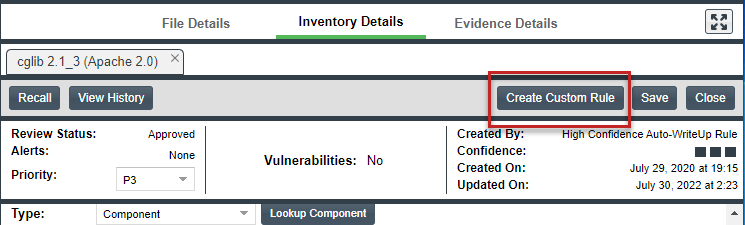
In the Analysis Workbench for the desired project (see Opening the Analysis Workbench), navigate to the Inventory Items pane and select the manually updated or created inventory item from which you want to create the custom detection rule. The Inventory Details tab for inventory item is opened.
-
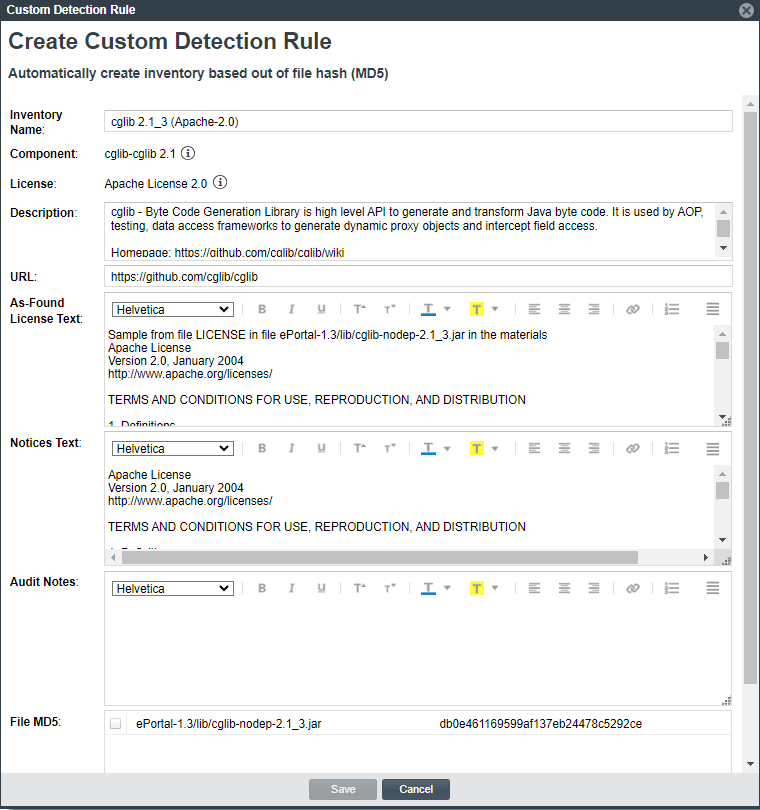
Click the Create Custom Rule button to open the Custom Detection Rule dialog. For a description of the fields in this dialog, refer to Create Custom Detection Rule Dialog.
noteConsider the following information: The Create Custom Rule button is enabled only to users assigned the Library Manager role. The fields are pre-populated with information already defined for the inventory item on which you are basing the rule.
The following displays the Custom Detection Rule dialog:
-
Edit the inventory-related fields as needed (with the exception of the Component and License fields, which are not editable). These fields are used to define inventory that is automatically created or updated by this rule during future scans. Note that you can use the Inventory Name field to overwrite the default name component version (license) otherwise assigned to inventory items created by this rule.
-
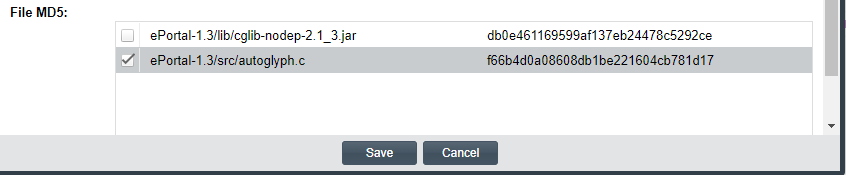
Scroll down to the File MD5 pane, which is pre-populated with the list of codebase files associated with the inventory item you created. The MD5 value for each file is provided.
-
Select one or more files to add to the rule. The MD5 value for each selected file becomes a criterion used to detect the component in the codebase.
-
Click Save and then click Yes to confirm that you want to proceed with creating the rule. It is then added to the Code Insight Data Library, where it will be available for global use.