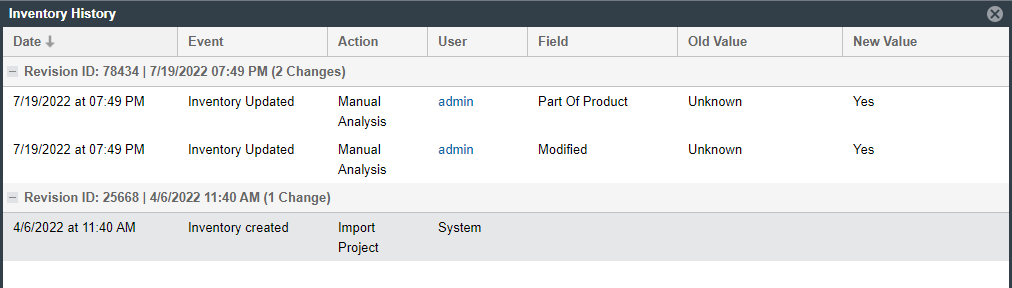
Viewing the Update History for an Inventory Item in the Analysis Workbench
From the Analysis Workbench, you can view a history of the updates made to a specific inventory item within the context of a project.
You have access to this same history from the Project Inventory tab. See Viewing the Update History for an Inventory Item in Project Inventory.
To view the update history of an inventory item, do the following:
-
Open the Analysis Workbench for the desired project. (For instructions, see Opening the Analysis Workbench.)
-
From the Inventory Items pane of the Analysis Workbench, select the inventory item whose update history you want to view.
The Inventory Details pane is opened (or refreshed) with information about the selected inventory item.
-
In the Inventory Details pane, click the View History button.

The Inventory History window is opened, showing the list of updates made to the inventory item within the project. By default, the updates are listed in descending order by date so that you see the most recent updates first. Each update record identifies—among other details—the update type, the user who made the update, and the before-and-after values in the update. For a description of all features on this window, see Inventory History Window.