Step 3: Initialize the Password Vault
The next step is to initialize the password vault so that it can be used to store the password information securely. This step is performed by running the Tomcat Vault script (tomcat-vault.sh on Linux and tomcat-vault.bat on Windows). The script can be run in silent mode or interactively.
Initialing the password vault is a one-time process.
Initializing the Vault in Silent Mode
The password vault can be initialized in silent mode (non-interactively) by providing the required input to the vault.sh/.bat script as set of arguments. The required vault.properties file is also created as output of the script.
To initialize the password vault in silent mode, use this procedure:
- Navigate to
<CODE_INSIGHT_INSTALL_DIR>/tomcat/bin folder, where<CODE_INSIGHT_INSTALL_DIR>is the directory in which Code Insight is installed. - Execute the following command, using the
vault.sh(on Linux) orvault.bat(on Windows). For a description of each parameter used in the command, see Vault Parameters.-
vault.bat --keystore<CODE_INSIGHT_INSTALL_DIR>/tomcat/tomcat-vault/vault.keystore --keystore-password<password>--alias<alias-name>--enc-dir<CODE_INSIGHT_ROOT_DIR>\tomcat\tomcat-vault --iteration 120 --salt<random_salt>--generate-config<CODE_INSIGHT_ROOT_DIR>\tomcat\conf\vault.properties -
The following shows the command with example values:
-
vault.bat --keystoreD:\CodeInsight\tomcat\tomcat-vault\vault.keystore--keystore-passwordpassword123--aliasmy_vault--enc-dirD:\CodeInsight\tomcat\tomcat-vault--iteration120--salt1234abcd--generate-configD:\CodeInsight\tomcat\conf\vault.properties -
If you need to make updates to this configuration later (including the addition of passwords to the vault), re-issue this same command with all its parameters. (The only non-required parameters are
--iterationand--salt, which, if omitted, revert to the default values,23and12345678, respectively, in the configuration.)
-
Initializing the Vault in Interactive Mode
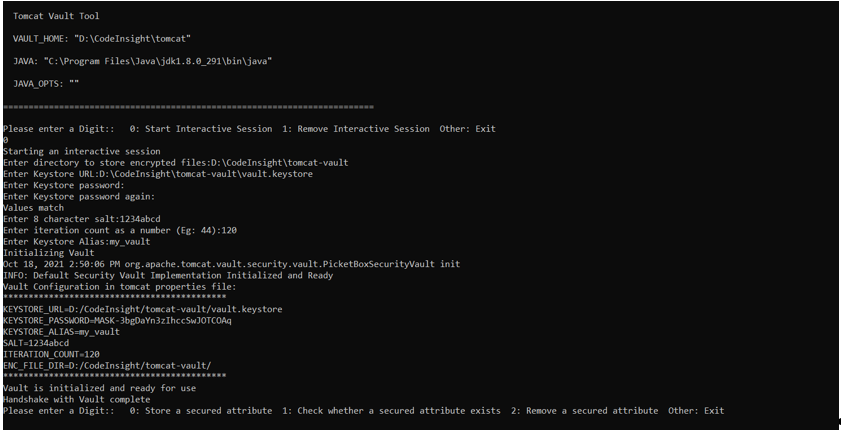
The password vault can be initialized in interactive mode, providing you with an interface that prompts you for the necessary parameter values. The following procedure describes how to run the initialization in this mode.
Unlike the silent mode, performing the vault initialization in interactive mode does not automatically generate the required vault.properties file once the initialization finishes. You must create this file manually. (Instructions for creating the file are included as the last step in this procedure.)
To initialize the password vault in interactive mode, use this procedure:
-
Navigate to
<CODE_INSIGHT_INSTALL_DIR>/tomcat/bin folder, where<CODE_INSIGHT_INSTALL_DIR>is directory in which Code Insight is installed. -
Execute the following command with no arguments:
vault.bat -
When asked to enter a digit, enter
0to start an interactive session.-
An interface is displayed, enabling you to enter the required information to initialize the vault. Once you have entered all required fields, the initialization process runs.
-
For a description of each field, see Vault Parameters.
-
-
Once the initialization completes, create a file containing the vault parameters for use in the encryption process:
-
Navigate to the
<CODE_INSIGHT_INSTALL_DIR>/tomcat/conf directory, and create a file calledvault.properties. -
Add the following parameters from the initialization output to the file. Be sure that the parameters and their values are duplicated exactly and that the
KEYSTORE_PASSWORDvalue is the masked password shown in the output.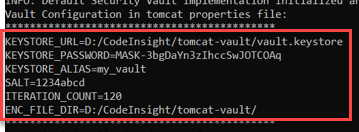
-
Save the file.
Once the vault.properties file is created, you can proceed to add the proxy password to the vault in the same interactive session; or you can exit the session and store the password at later time. For either option, refer to Using Interactive Mode to Store the Password for instructions.
Vault Parameters
The following describes the parameters used to initialize the password vault in silent or interactive mode. The name of a given parameter in silent mode in listed in the first column, “Parameter in Silent Mode”. The field name of the same parameter in interactive mode is listed in the second column (“Field in Interactive Mode”).
| Parameter in Silent Mode | Field in Interactive Mode | Value |
|---|---|---|
| --enc-dir | Enter directory to store encrypted files | The absolute path in which the encrypted files for the vault are to be stored. This is typically the directory that contains the keystore created for the vault in Step 2: Create the Java Keystore for the Vault: <CODE_INSIGHT_INSTALL_DIR>\tomcat\tomcat-vault where <CODE_INSIGHT\INSTALL\DIR> is the directory in which Code Insight is installed. However, you can specify any path accessible to Tomcat. |
| --keystore | Enter Keystore URL | The absolute path and name of the keystore created in Step 2: Create the Java Keystore for the Vault. |
| --keystore-password | Enter Keystore password | The password used to access the keystore. This must be the same value defined for both storepass and keypass in Step 2: Create the Java Keystore for the Vault. |
| N/A | Enter Keystore password again | (Interactive mode only) The same keystore password entered for the previous Keystore password field. If the two passwords match, the message “Values match” is displayed, and you can proceed with the vault configuration. |
| --salt | Enter 8 character salt | A random string of exactly 8 characters that will be used in the encryption process. Special characters such as *, +, “, and \ are not supported. By default, this value is 12345678 but can be changed as long as the value contains 8 characters and does not use the special characters listed. |
| --iteration | Enter iteration count as a number | The number of times that the encryption algorithm is run. By default, this number is 23, but can be changed. |
| --alias | Enter Keystore Alias | The alias used for the keystore (as defined in Step 2: Create the Java Keystore for the Vault). |
| --generate-config | N/A | The path and name of the file that is automatically generated at the end of the initialization phase. The file will contain the vault configuration properties required for the encryption process. Enter the following path and name for this file: <CODE_INSIGHT_INSTALL_DIR>/tomcat/conf/vault\.properties where <CODE\_INSIGHT\_INSTALL\_DIR> is the directory in which Code Insight is installed. In interactive mode, this file must be created manually, as described in Initializing the Vault in Interactive Mode. |