Step 4: Store the Proxy Password in the Vault
The next phase involves storing the proxy password in the password vault. This process runs the same vault script used to initialize the vault. You can perform this step in silent mode or interactively after the vault initialization process (described in Step 3: Initialize the Password Vault) has completed.
Using Silent Mode to Store the Password
The following procedure explains how to add the proxy password to the vault in silent mode (non-interactively). Even though the vault is already initialized, you must re-enter the same parameter values used to initialized the vault, as well as provide the additional parameters needed to store the password.
To use silent mode to store the proxy password, do the following:
- Navigate to
<CODE_INSIGHT_ROOT_DIR>/tomcat/bin folder, where<CODE_INSIGHT_INSTALL_DIR>is the directory in which Code Insight is installed. - Execute the following command, using the
vault.sh(on Linux) orvault.bat(on Windows). Use the same parameter values used to initialize the vault (see Vault Parameters), as well as include the additional parameters needed to store the password (see Parameters Used for Password Storage).-
vault.bat --keystore<CODE_INSIGHT_ROOT_DIR>\tomcat\tomcat-vault\vault.keystore --keystore-password<password>--alias<alias_name>--enc-dir<CODE_INSIGHT_ROOT_DIR>\tomcat\tomcat-vault --iteration 120 --salt<random_salt>--vault-block<block_name>--attribute<attribute_name>--sec-attr<password> -
The following shows the command with example parameter values. The command uses the vault initialized in Initializing the Vault in Silent Mode. The additional parameter values used to store the proxy password are in blue italics.
-
vault.bat --keystoreD:\CodeInsight\tomcat\tomcat-vault\vault.keystore--keystore-passwordpassword123--aliasmy_vault--enc-dirD:\CodeInsight\tomcat\tomcat-vault--iteration120--salt1234abcd--generate-configD:\CodeInsight\tomcat\conf\vault.properties--vault-blockmy_block--attributeproxy_pwd--sec-attrsca
-
Using Interactive Mode to Store the Password
The following procedure describes how use the interactive mode to store the proxy password in the vault. You can perform this step as a continuation of the interactive session already opened once the vault initialization process has completed; or, if you closed that session, you can open another session on the initialized vault at any later time to store the password.
To use interactive mode to store the proxy password, do the following:
-
If you are still in the same session that initialized the password vault (described in Initializing the Vault in Interactive Mode), proceed to the next step.
-
Or
-
If you have closed the session in which you initialized the password vault, open another session on the vault, using the steps described in Initializing the Vault in Interactive Mode. Even though the vault is already initialized, you must re-enter same parameter values that were used to initialize the vault. Once the session is established, proceed to the next step.
-
-
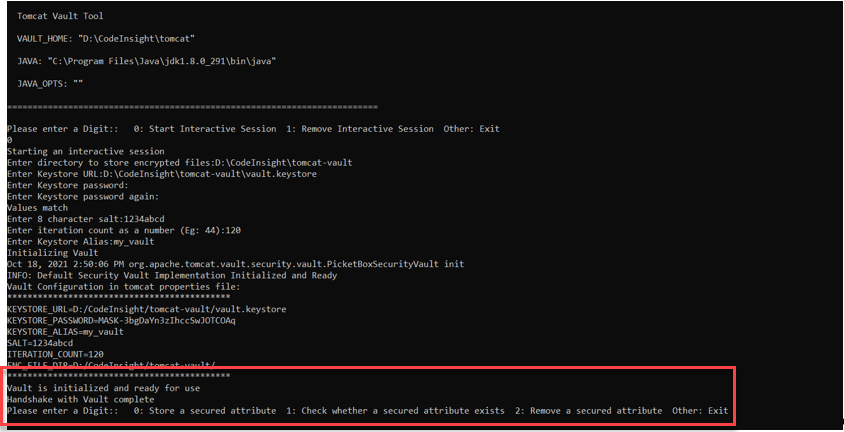
Below the messages “Vault is initialized and ready for use...Handshake with Vault complete” at the bottom of the interface, locate the “Please enter a digit” field.
-
Enter the value
0to store a secure attribute—in this case, the proxy password. -
Complete the “attribute” parameters required to store the proxy password. For a description of these parameters, see Parameters Used for Password Storage.
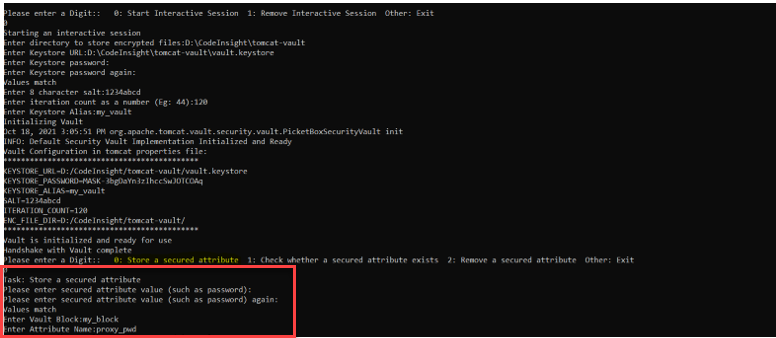
Once you have entered all required parameters, the password is stored. The interface displays the message “Secured attribute value has been stored in the vault” and lists the storage parameters for the password.
Parameters Used for Password Storage
The following describes the parameters used to securely store a proxy password in the password vault in silent or interactive mode. The name of a given parameter in silent mode in listed in the first column, “Parameter in Silent Mode”. The field name of the same parameter in interactive mode is listed in the second column (“Field in Interactive Mode”).
| Parameter in Silent Mode | Field in Interactive Mode | Value |
|---|---|---|
| --sec-attr | Please enter secured attribute value (such as a password) | The proxy password to be stored. The password is entered in plain text. |
| N/A | Please enter secured attribute value (such as password) again | (Interactive mode only) The same plain-text password entered for the previous field Please enter secured attribute (such as password) . If the two passwords match, the message “Values match” is displayed, and you can proceed with the password-storage process. |
| --vault-block | Enter Vault Block | A user-defined name for a location in the vault in which to store the proxy password. If you do not specify a block, one is created for you. |
| --attribute | Enter Attribute Name | An alias for the password. This will be name by which the password is referred. |
| generate-config | N/A | The path and name of the file that is automatically generated at the end of the initialization phase. The file will contain the vault configuration properties required for the encryption process. Enter the following path and name for this file: <CODE_INSIGHT_INSTALL_DIR>/tomcat/conf/vault\.properties where <CODE\_INSIGHT\_INSTALL\_DIR> is the directory in which Code Insight is installed. In interactive mode, this file must be created manually, as described in Initializing the Vault in Interactive Mode. |