Viewing Security Vulnerabilities for a Specific Component Version at the Project Level
Use the following procedure to view the list of security vulnerabilities associated with a specific component version for a given Code Insight project. This list does not include vulnerabilities suppressed for the component version at the project or global level.
If duplicate inventory items exist within a project, any one of these items will show the same vulnerabilities. Duplicate inventory items occur in a project when the items have the same component version but each has a different license or is identified as a dependency of or related to another inventory item.
To view security vulnerabilities for a specific inventory item, do the following:
-
Click the Vulnerabilities bar graph for an inventory item in either location:
-
In the Inventory view. (See An Inventory Item Listed in the “Inventory” View for more information.)
-
Currently shown in the Inventory Details pane/tab in the Analysis Workbench or the Project Inventory tab. (See An Inventory Item Currently in Focus in the “Analysis Workbench” or on the “Project Inventory” Tab for more information.)
noteThe bar graph is visible only if vulnerabilities exist for the inventory item.
The Security Vulnerabilities window is displayed.
The following example shows the window when accessed for an inventory item in focus on the Inventory Details pane/tab in the Analysis Workbench or Project Inventory tab:
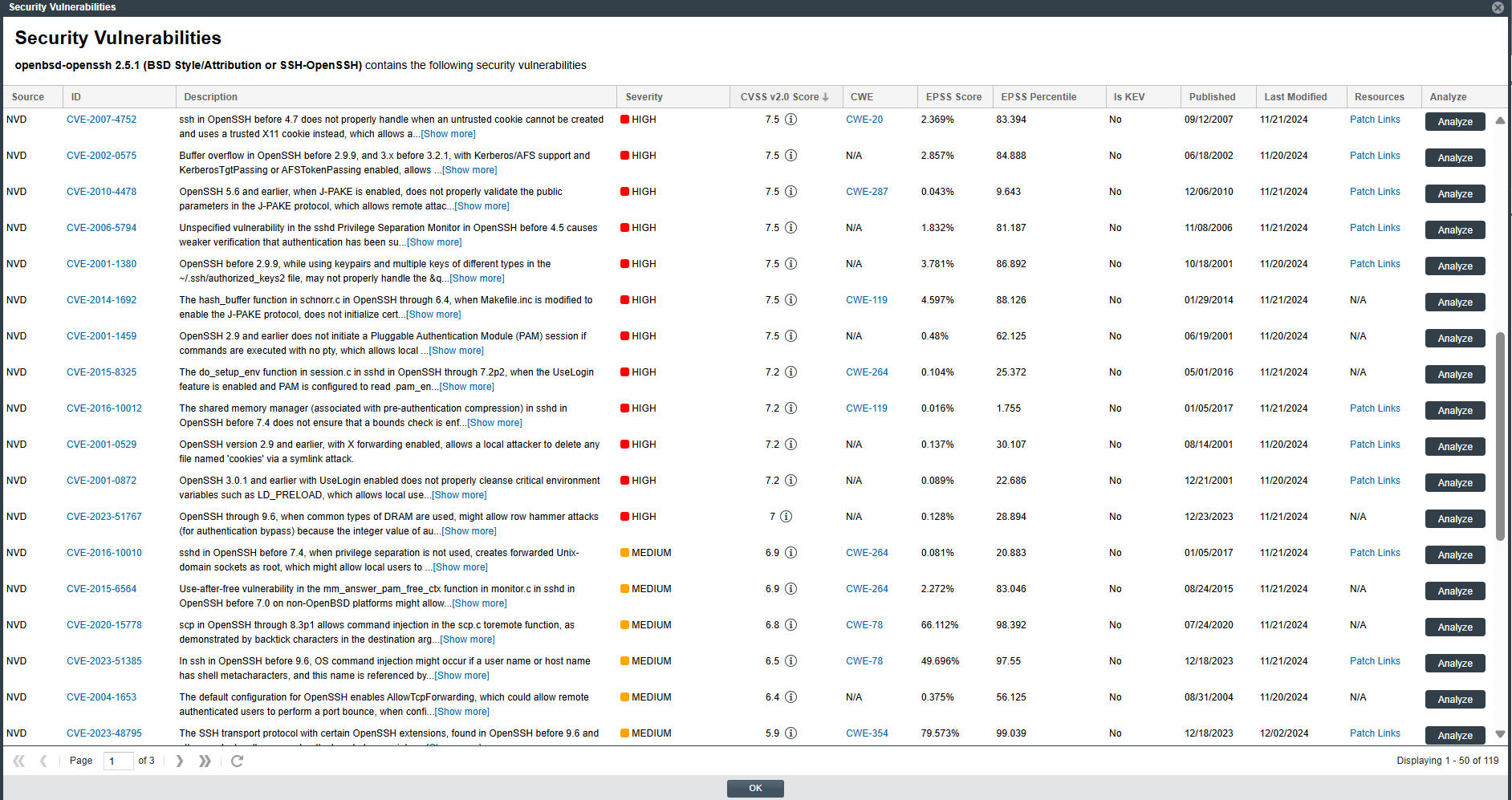
When accessed for an inventory item in the Inventory view, the Analyze column is replaced with a Suppress column showing a Suppress button for each vulnerability. (However, the Suppress column is visible only if you are a System Administrator.)
-
-
Examine the vulnerabilities in the Security Vulnerabilities list.
-
For a description of the details shown for each vulnerability listed, see Security Vulnerabilities Window.
-
For information to keep in mind as you review the list, see Important Information About the List of Vulnerabilities.
-
-
(Optional) For a given vulnerability, perform either of the following, depending on the button displayed in the Action column:
-
When the Analyze button is displayed—Click this button to open the Analyze or Suppress Vulnerability window to review the current VEX (Vulnerability Exclusion eXchange) analysis for the vulnerability within the context of the current project. If you are a System Administrator or the project’s Security Contact (also known as the Security Reviewer) or the Developer Contact (also known as the Remediation Developer), you can also edit this analysis information and suppress the vulnerability at the project level if needed. (For instructions, see Suppressing or Unsuppressing a Security Vulnerability at the Project Level.)
If you are a System Administrator, you can alternatively suppress the vulnerability at the global level from the Analyze or Suppress Vulnerability window. (For more information, see Suppressing or Unsuppressing a Security Vulnerability at the Global Level.)
Without these permissions, you can only review the analysis details.
-
When the Suppress button is displayed—Click this button to open the Suppress Vulnerability window to suppress the vulnerability at the global level. For instructions, see Suppressing or Unsuppressing a Security Vulnerability at the Global Level.
-
-
When you have finished examining the Security Vulnerabilities window, click OK to close it.
Important Information About the List of Vulnerabilities
Keep the following in mind as you examine the list of vulnerabilities on the Security Vulnerabilities window.
-
Each row in the Security Vulnerabilities list identifies a specific security vulnerability directly associated with the selected inventory item. A vulnerability can be reported by the NVD (National Vulnerability Database) as a CVE (Common Vulnerabilities and Exposures) or by a research organization such as Secunia, Debian, or others. (Such organizations publish well-researched security advisories about CVEs that can include information not found in the NVD descriptions.)
-
By default, the list is sorted on the CVSS <version> Score column in descending order.
-
If a CVE is both published by the NVD and referenced in one or more advisories, the vulnerability is listed and counted separately for each location. For example, a CVE that is published by the NVD and referenced in two advisories will have a count of 3 reflected in the vulnerability totals (as displayed on the project dashboards and Vulnerabilities bar graphs in the Web UI, as well as shown in API responses and the Project and Audit reports).
-
In cases where the vulnerability score is unknown (and reported as N/A in the list), the severity level of the vulnerability is reported as None or Unknown. (For more information about the vulnerability score and severity, see Security Vulnerabilities Window.)
-
Click the vulnerability’s hyperlinked ID and, if available, its CWE value and Patch Links link (under Resources) to open your browser to an external website (on a separate tab) for more information about the vulnerability and its fixes.
-
If a security vulnerability, appears in the Security Vulnerabilities list, is already included in the Known Exploited Vulnerability (KEV) catalog, the Is KEV column or property would display the Yes value for that particular vulnerability.
Your feedback is welcome on how Code Insight should handle the severity and scoring of currently unscored vulnerabilities. The Code Insight team will do its best to incorporate the results of this feedback into the Code Insight vulnerability database. Contact Revenera Support with your suggestions.